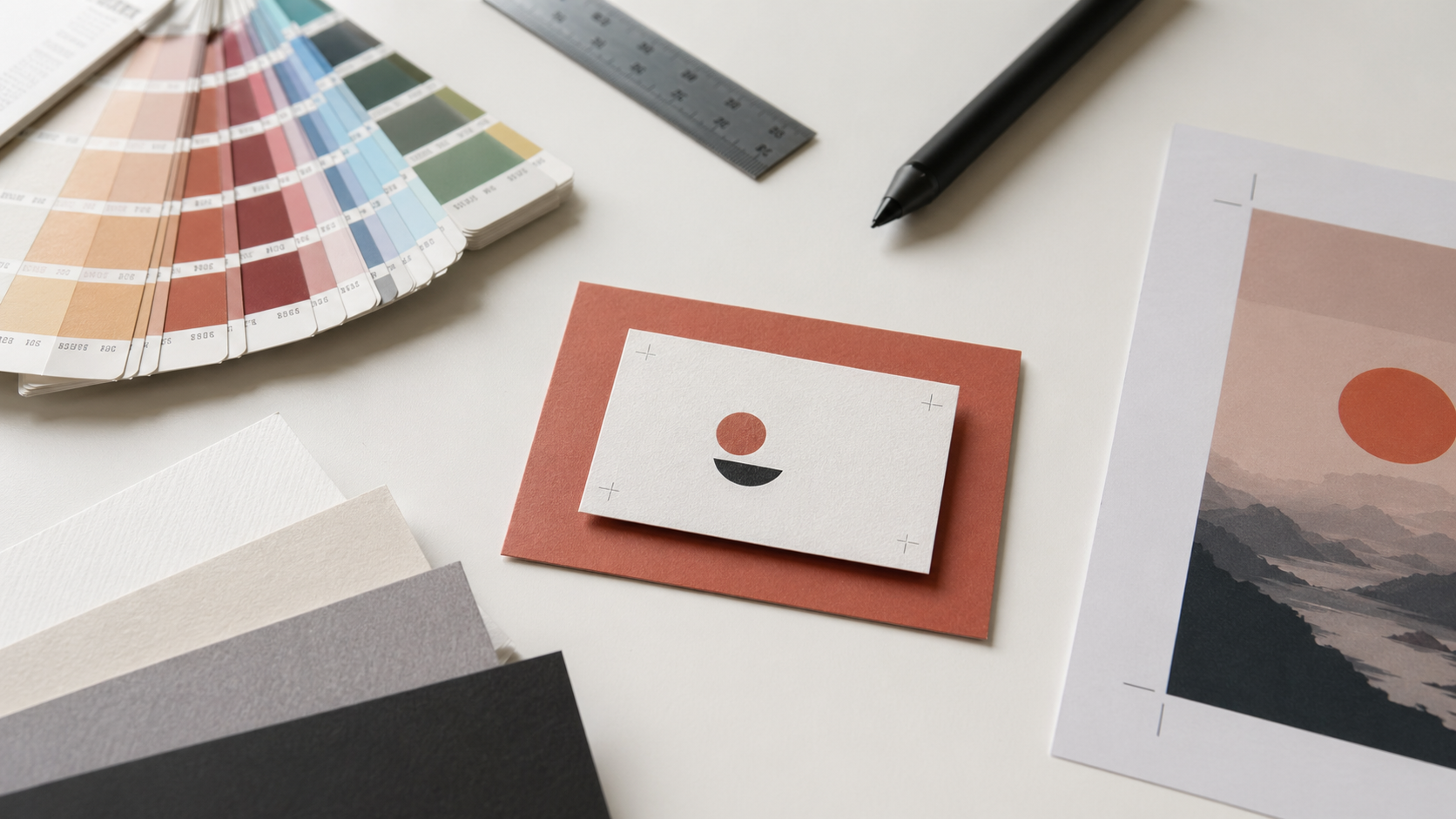
If you've ever had a business card come back with a thin white sliver along one edge, or a logo clipped by the guillotine, you've run into the two most common causes of print rejects: missing bleed and artwork sitting too close to the trim. Both are avoidable, and both come down to a five-minute setup at the start of the job.
This guide walks through bleed, safe areas, and crop marks the way we'd explain them to a designer sending files to our press for the first time. The example here is a business card in InDesign, but the same rules apply to flyers, posters, brochures, and anything else that gets trimmed to a finished size.
What Bleed Actually Does
Bleed is the portion of your artwork that extends past the final trim edge. It exists because no cutting process — guillotine, die, or laser — hits the exact same millimetre every single time. There's always a small tolerance, and bleed absorbs that tolerance.
The Australian trade standard is 3mm of bleed on every edge. If your business card is 85 × 55mm, your artwork canvas with bleed is effectively 91 × 61mm. Any background colour, photo, or design element that touches the edge of the card needs to extend all the way to that outer bleed line.
Without bleed, the press has to hit your trim line perfectly. Drift by half a millimetre and you get a white hairline on one edge. With 3mm of bleed, the cut can drift and the background still runs clean to the edge.
The Safe Area (And Why It's Not Optional)
The safe area — sometimes called the margin or the quiet zone — is the inverse of bleed. It's the inside buffer where nothing critical should sit.
Keep logos, text, phone numbers, QR codes, and any other content you can't afford to lose at least 3mm inside the trim line. For larger formats like A1 posters or pull-up banners, push that buffer to 5–10mm because the cutting and finishing tolerances scale up with format size.
If a client's phone number is 1mm from the trim edge and the cut drifts, you've just printed 500 business cards with a missing digit. The safe area exists so that never happens.
Setting Up a New Document in InDesign
When you create a new document, the bleed settings are hidden under "Bleed and Slug" — click the arrow to expand that panel.
For a standard Australian business card:
- File → New → Document
- Set page size to 85 × 55mm (landscape for most designs)
- Set margins to 3mm on all sides — click the chain link icon to apply uniformly
- Expand Bleed and Slug, set 3mm bleed on all sides
- Click Create
If your units are showing in picas or inches, go to InDesign → Preferences → Units & Increments and switch to millimetres. Australian trade printers work in metric, so your files should too.
Once the document is open, InDesign shows two guides around your page: a red line (the bleed edge) and a purple or magenta line (the margin/safe area). Extend backgrounds to the red line. Keep important content inside the purple line.
View Modes: Normal, Bleed, and Preview
InDesign's view modes at the bottom of the Tools panel let you check your work:
- Normal — shows guides, frames, and bleed area. Best for working.
- Bleed — shows the document up to the bleed edge, hides guides. Useful for checking how far your artwork extends.
- Preview — shows the document as it will look after trimming, with bleed hidden. This is the closest approximation to the printed piece.
Flick to Preview before you export. If anything important disappears or sits uncomfortably close to the trim, fix it before the file leaves your machine.
Exporting a Print-Ready PDF
This is where a lot of files go wrong. InDesign's default export settings aren't configured for trade print — you need to adjust a few things.
- File → Export → Format: Adobe PDF (Print)
- Adobe PDF Preset: PDF/X-1a:2001 or PDF/X-4 is a safe default for most Australian trade printers. Check with your printer if they've specified otherwise.
- Compatibility: Acrobat 5 or higher — use the most recent version your printer accepts.
- Marks and Bleeds tab: tick Crop Marks and Use Document Bleed Settings. Leave registration marks and colour bars off unless the printer requests them.
- Output tab: convert to CMYK if your document has RGB elements. Most Australian trade printers work in CMYK, so RGB files either get auto-converted (with unpredictable colour shifts) or rejected.
Before you export, outline all your fonts — or make sure they're embedded. Outlining (Type → Create Outlines) removes any risk of font substitution on the printer's end. The trade-off is you lose editability, so keep a master file with live text.
What Crop Marks Actually Look Like
Crop marks are the short lines in each corner of the exported PDF that tell the printer exactly where to cut. They sit just outside the trim edge, with a small gap (the offset) so they don't print inside the bleed area.
On a correctly exported PDF you should see:
- Four L-shaped marks in each corner, indicating trim position
- Your artwork extending 3mm past those marks (the bleed)
- A clean, empty margin between the crop marks and the bleed edge
If your crop marks are sitting on top of your artwork, your offset is wrong. If there's no artwork past the crop marks, you forgot to extend your bleed.
When 3mm Isn't Enough
The 3mm standard covers most small-format work — business cards, flyers, A4 and A3 posters. For larger or more specialised jobs, bleed requirements change:
- Large format posters (A1, A0): 5mm bleed is safer
- Pull-up banners and display graphics: check the printer's template — bleed allowances can be 90mm at the base for the cassette mechanism
- Corflute signs and rigid boards: 3mm bleed, and keep critical content 10mm inside the trim because router tolerances are wider than guillotine tolerances
- Mesh banners and tensioned fabric: allowances vary significantly based on edge finish (hemmed, eyeleted, pole pocket) — always download the printer's template
When in doubt, ask for the template. Every decent trade printer has them, and using the supplied template removes guesswork. You can browse specs and templates across our full product catalogue if you want to see how bleed requirements differ by product.
Common Bleed Mistakes to Avoid
A few things we see come through that send files back to the designer:
- Bleed set up but artwork not extended into it. A 91 × 61mm canvas with a background that only fills 85 × 55mm defeats the purpose.
- Placing a border 2mm from the edge. Any border less than ~5mm from the trim will look uneven after cutting due to normal drift. Either make it a bold, deliberate border (10mm+) or don't use one.
- Spot colours left in the file when the job is CMYK. Convert or the printer's RIP will make the call for you.
- Forgetting bleed on the inside pages of booklets. Every page needs bleed, not just the cover.
Key Takeaways
- 3mm bleed is the Australian trade standard for small format print; scale up for larger formats
- Safe area should also be 3mm minimum — keep text, logos, and critical content inside it
- Set up bleed in InDesign via File → New → Document, expanding the Bleed and Slug panel
- Export as PDF/X-1a or PDF/X-4 with crop marks enabled and "Use Document Bleed Settings" ticked
- Convert RGB to CMYK and outline or embed fonts before export
- Use Preview mode in InDesign to check how the final trimmed piece will look
- When working with specialty formats (banners, corflute, display), always use the printer's supplied template
Send Us the File, We'll Handle the Press
Bleed and crop marks are the unglamorous part of design, but getting them right is what separates a file that prints clean from one that bounces back with revisions. Once your artwork is set up properly, the rest is production — and that's where we come in. Mediapoint is an Australian trade printer working with resellers, sign shops, and designers across the country. Set up your job and get instant pricing through our portal, and we'll take it from press-ready PDF to finished product.